Using Stowpoke

Start in three steps

  1. 1

    Add a place

    Places → +

    Garage, then Shelf A, then Bin 12

  2. 2

    Tag the box

    NFC, QR or barcode

    See tags below

  3. 3

    Scan the box, then its things

    Scan → hold to the tag

    Each thing shows where it went

Pick your tags

NFC tag

Fastest. Hold your iPhone to it and you're done.

NTAG stickers, iPhone XS or later. Stowpoke sets a new tag up as you scan it, so touching it opens the app.

QR label

No hardware. Any printer will do.

Open an item or place → QR label → Print. It carries the same link as an NFC tag.

Barcode

Already there. Scan it once and name the item.

A barcode names a product. Keep several of the same? Put a QR label on each.

Scan

Two ways to read, one tap apart: NFC tags or QR & barcodes. It opens the way you used last.

  • Scan a boxEverything you scan next goes in it.
  • Scan a thing firstIt waits for a box.
  • Take outScan things to take out of storage. They remember where they belong.
  • UndoFor 30 seconds after a move.

The line along the bottom of the card is the box's 30 seconds. Scan another box to start a new batch.
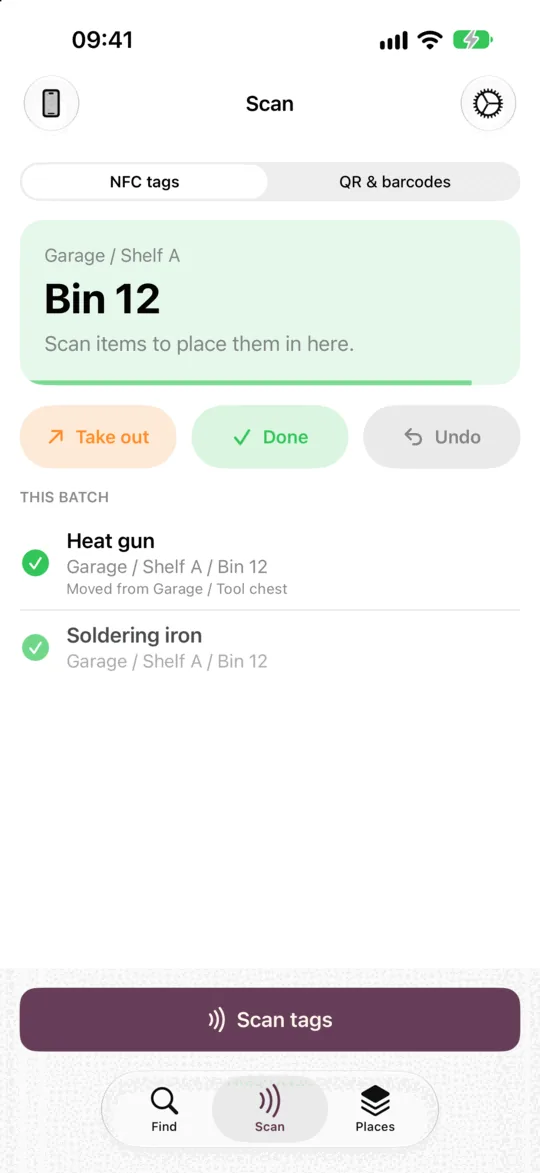
The Scan tab with Bin 12 selected and two things put away

Find

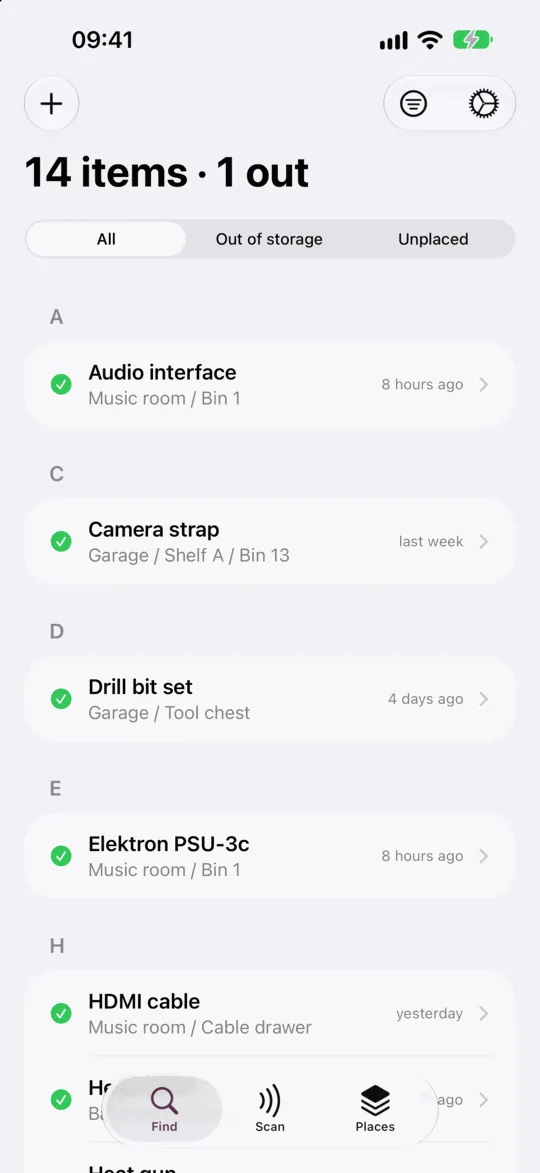
  • SearchName, place or notes.
  • All · Out of storage · UnplacedOne tap to narrow it.
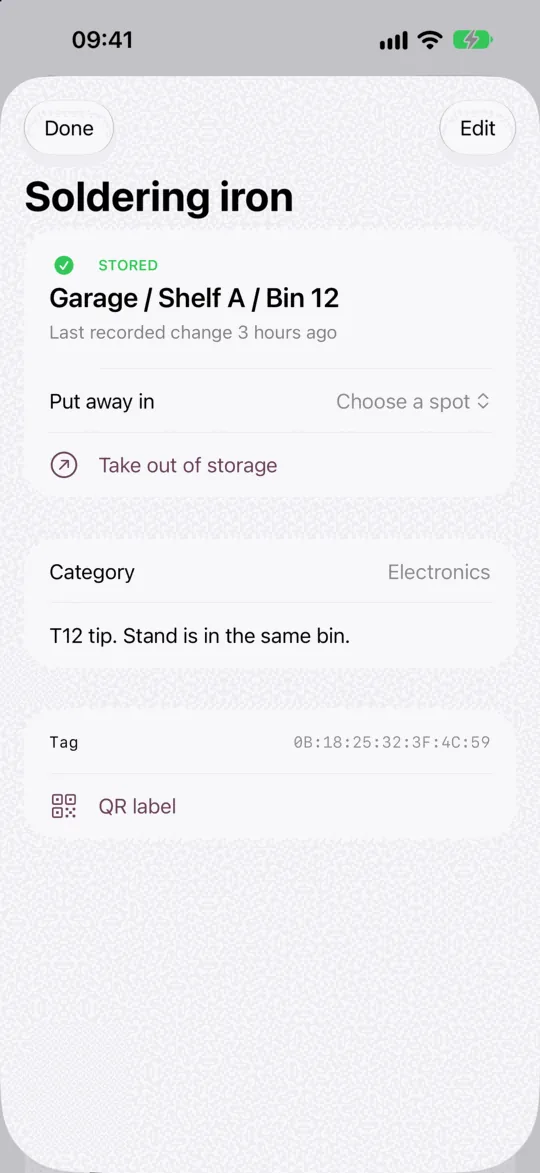
  • Open an itemWhere it is, who moved it, when, and a way to move it by hand.
Find, with every item and where it is An item showing where it is and when it moved

Places

Your rooms, shelves and boxes as a tree, with the count in each.
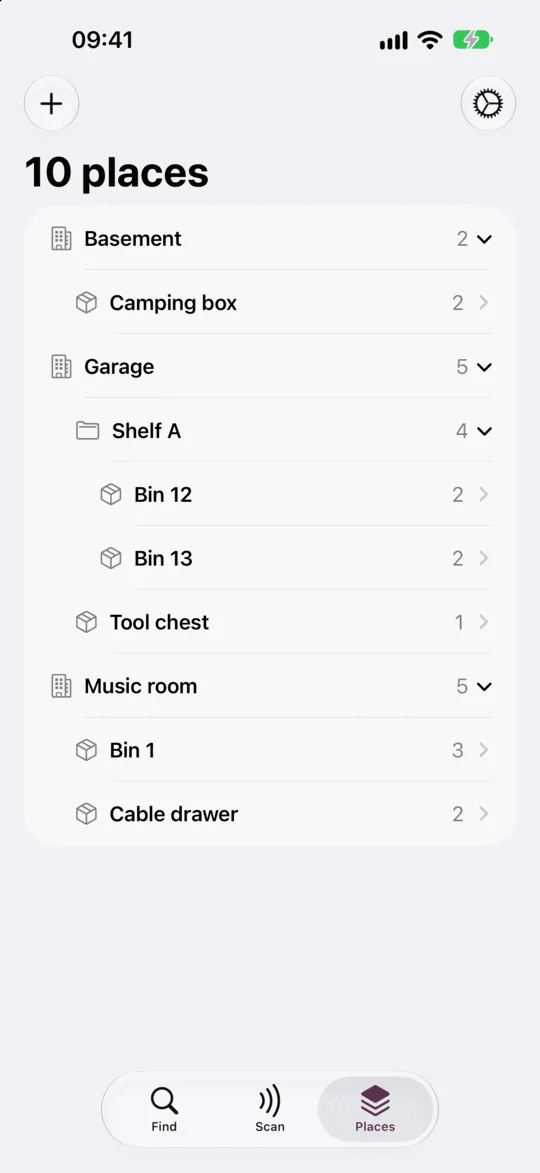
  • Open a placeWhat is stored there, and the spots inside it.
  • Add a spotA shelf in a room, a bin on a shelf. As deep as you like.
  • QR labelEvery place can carry one, like any item.
The Places tree

QR labels

  1. Open an item or a place.
  2. Tap QR label.
  3. Print, or share the image.
  4. Stick it on. Scan it like a tag.

The same label also prints from this website. Scanning it with the Camera app opens the record without changing anything.
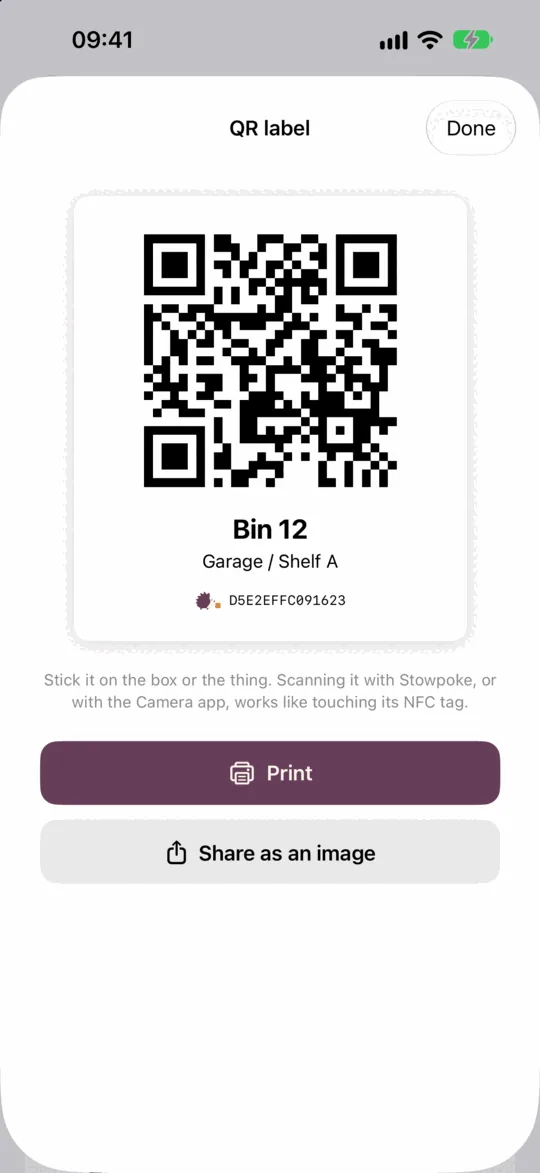
A printable QR label for Bin 12

Where your inventory lives

This phone

Private. No account. Works anywhere.

Stowpoke service

Every device, sharing with up to 10 people (they join free), and this website. Optional yearly subscription for the owner.

Your own server

Run it yourself. No account, no fee. How

Switch any time in Settings, and bring your inventory with you. It is yours: Settings → Export, whatever you use.
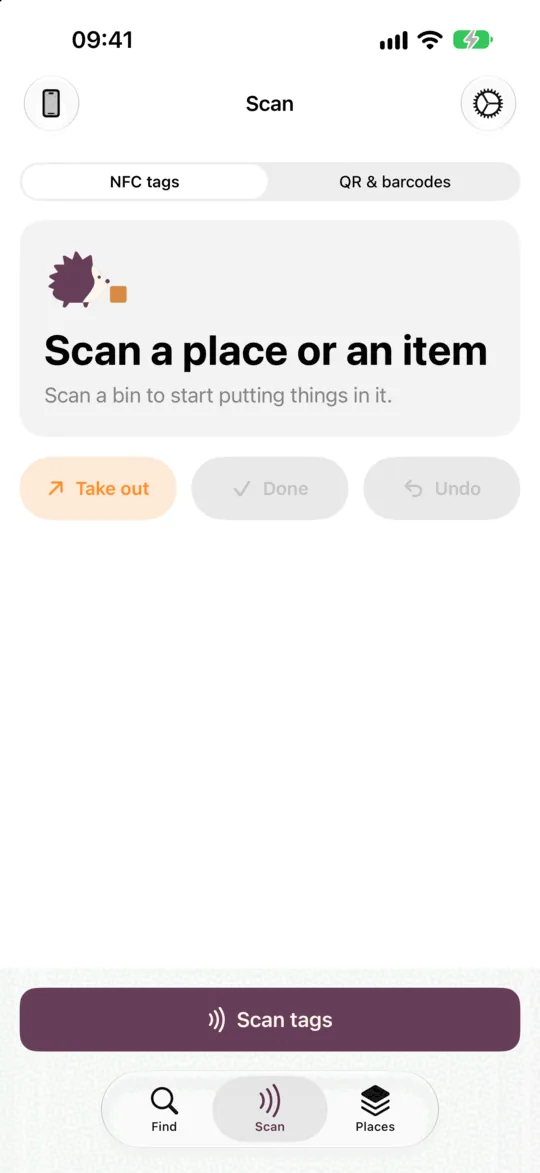
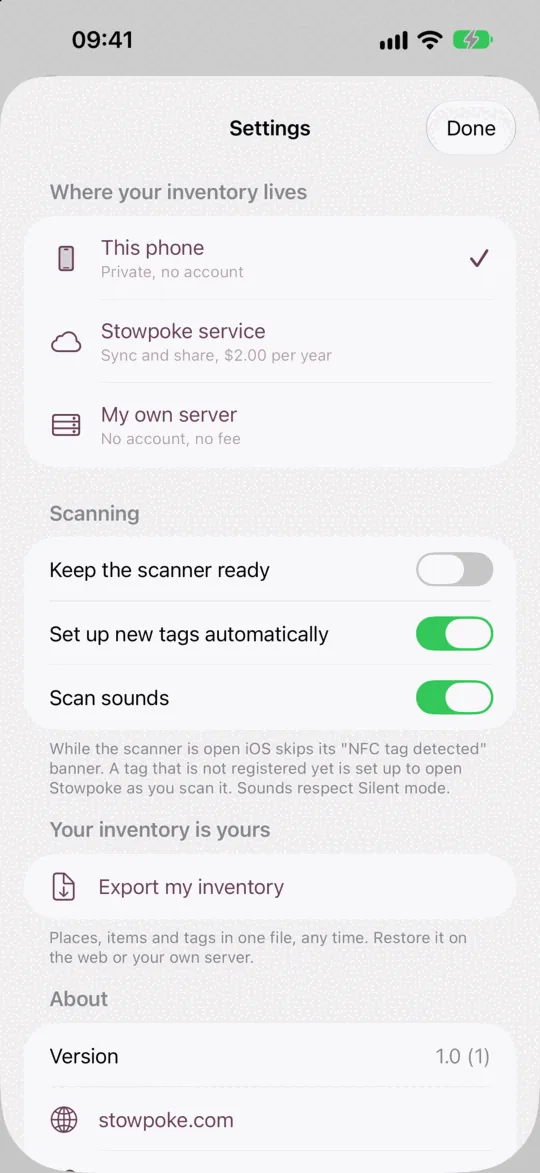
The first screen: three ways to start Settings